Why Elementor Creates SEO Problems Most People Don't Know About
Elementor is one of the most popular WordPress page builders, and one of the most commonly misused from an SEO perspective. The problems aren't always visible in the editor. They live in how Elementor renders HTML, how its templates get applied sitewide, and how its default widget settings interact with heading hierarchy.
Chasin Surf (chasinsurf.com) is a family travel blog built entirely on WordPress + Elementor Pro, with over 370 indexable pages, a large image library, and a heavily customized sidebar and footer built using Elementor templates. When we ran a full technical SEO audit, Elementor-specific issues were responsible for some of the most widespread problems on the site.
This case study documents exactly what those issues were, why they happen in Elementor, and how we fixed them, without rebuilding the site.
The core Elementor SEO problem: template-level decisions affect every page the template is applied to. One wrong heading tag in a shared template = a sitewide SEO issue that appears on hundreds of pages simultaneously.
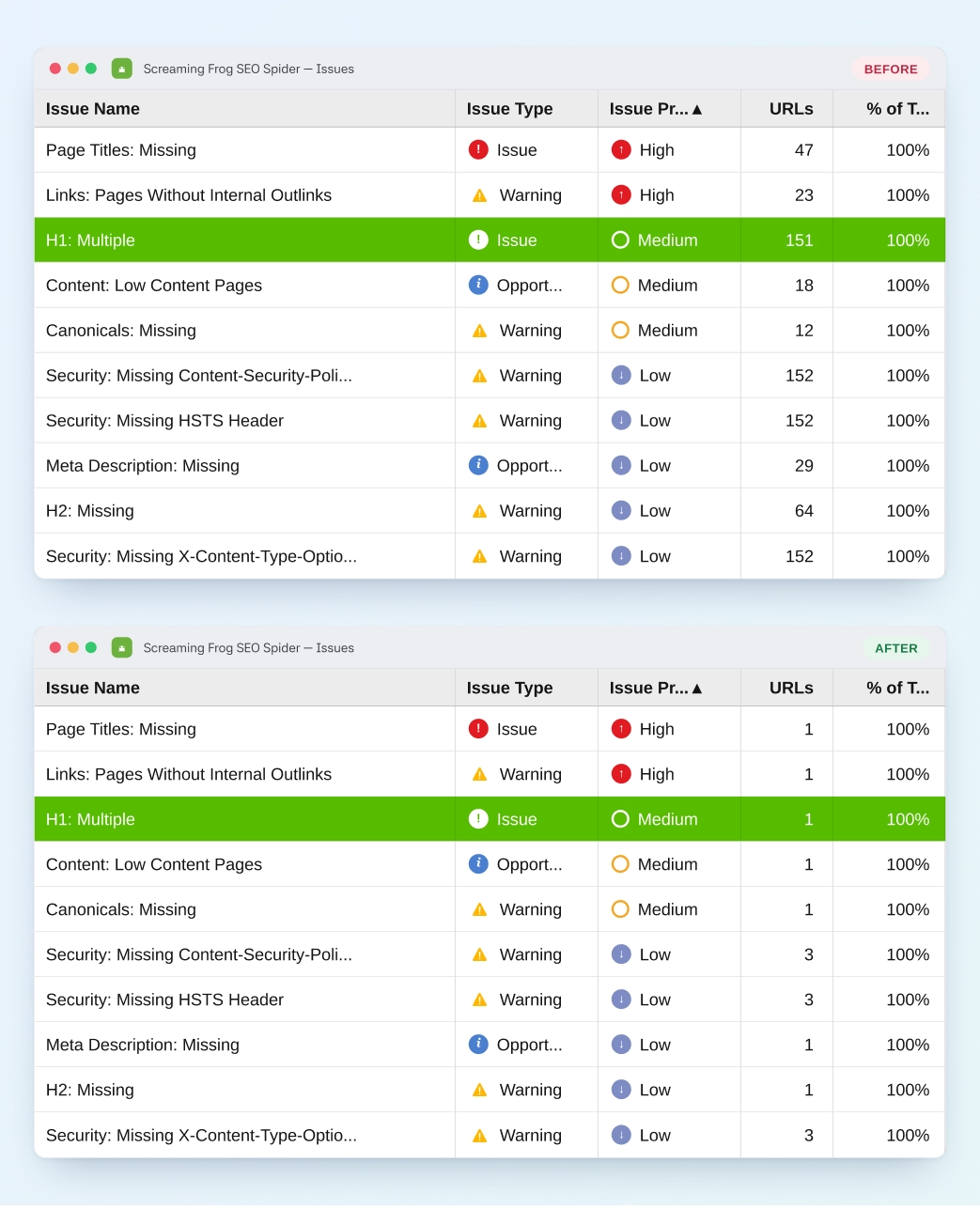
Issue 1: 151 Pages with Multiple H1 Tags
Google expects exactly one H1 tag per page, the primary topic signal. When crawling chasinsurf.com, we found 151 pages were rendering two H1 tags. This wasn't the writers adding duplicate headings in the editor. It was a shared Elementor template.
Root cause:
A newsletter/freebie banner section, "Grab your Free Family Travel Planning Guide: the exact steps we use to plan unforgettable adventures around the world", was built using an H1 heading widget in Elementor. This banner was placed in a global template applied to every blog post. So every single post was rendering two H1s: the actual article title, and the banner headline.
The fix: change the heading widget type from H1 to a div or paragraph inside the Elementor template. One change, applied to the shared template, resolves the issue across all 151 pages simultaneously. No individual post edits needed.
Why this matters: multiple H1s confuse Google about the primary topic of the page. The algorithm has to guess which H1 is the real one, and it often picks wrong, which means your carefully optimized article title loses its ranking power to a newsletter banner.
Issue 2: Footer Navigation Using Heading Tags
Elementor's default heading widget makes it easy to style text visually, but it encourages a bad habit: using H3 or H4 tags for footer nav labels simply because they "look right." On chasinsurf.com, the footer navigation was built using H3 and H4 tags for section labels like "Destinations," "About," and "Resources."
What was happening:
Every page on the site was showing 4–6 extra heading tags in the footer: "Destinations" (H3), "About" (H3), "Resources" (H4), that had nothing to do with the page content. These footer headings were inflating the heading count and polluting the heading hierarchy that Google uses to understand page structure.
The fix: change heading widgets in the footer Elementor template to paragraph or div elements, then style them with CSS to maintain the visual look. Again, one template edit fixes every page.
Issue 3: Table of Contents H3 Before Any H2 (41 Pages)
On 41 blog posts, the Table of Contents section used an H3 heading tag ("Table of Contents") at the top of the post, before any H2 had appeared on the page. This breaks the heading hierarchy rule: H3 should only appear inside an H2 section, never before one.
Why it happens in Elementor:
The Table of Contents widget in Elementor defaults to using an H3 for its label. Because the TOC appears near the top of the post template, before the main article content starts, it renders an H3 before Google has seen a single H2. This creates a non-sequential heading structure that signals poor content organization.
Fix: change the TOC label widget from an H3 to a div or paragraph in the Elementor TOC widget settings, or wrap with a custom CSS class. If the TOC is in a reusable template, one fix covers all 41 pages.
Issue 5: 2,148 Oversized Images (Elementor's Hidden Speed Killer)
Elementor doesn't compress or resize images on upload. Whatever file goes into the media library gets rendered as-is. On a site with a large image library built post-by-post over years, this creates a compounding performance problem.
On chasinsurf.com, the audit identified 2,148 images over 100KB each, the primary driver of slow LCP (Largest Contentful Paint) scores and the reason 142 pages were flagged as slow. Many of these were full-resolution travel photos uploaded directly from a camera.
| Approach | Pros | Cons | Recommended? |
|---|---|---|---|
| Bulk plugin (Imagify / ShortPixel) | Fast, automated | Generates multiple image versions, increases hosting storage, compresses images that don't need it | Not for large libraries |
| Manual resize before upload | Full control, no bloat, correct dimensions per context | Time-intensive for existing library | Yes, ongoing |
| Delete low-value images | Reduces load without resizing | Requires content review per post | Yes, first pass |
| Set upload standard (1000×600px) | Prevents future bloat | Doesn't fix existing images | Yes, standard going forward |
Our approach: establish a 1000×600px standard for all new image uploads, delete images that don't add content value, and manually resize priority pages rather than running a bulk plugin that risks generating unnecessary image versions across the entire library.
This audit surfaced 151 duplicate H1s and 2,148 oversized images nobody could see. Our technical SEO service runs the same crawl on yours.
The Fixes: Elementor SEO Checklist
Every Elementor site we audit gets checked against this list. These are the issues that appear consistently across Elementor-built WordPress sites:
| Issue | Where to Fix in Elementor | Scope |
|---|---|---|
| Multiple H1 from global template | Change Heading widget type in the global template → HTML tag → div | Template edit → sitewide fix |
| Footer nav heading tags | Footer Elementor template → change heading widgets to Text widget or custom HTML | Template edit → sitewide fix |
| TOC heading before H2 | TOC widget settings → change label tag to div / paragraph | Template or per-post |
| Shared sidebar sticky conflict | Create separate sidebar templates per post type; assign conditionally via Elementor conditions | New template per cluster |
| Oversized image uploads | Media Library → set max upload width; delete duplicates; manual resize priority posts | Per-post + upload standard |
| Missing alt text on images | WordPress Media Library → alt text field (fixes propagate to all pages using the image) | Media Library level |
| OG image not set | Rank Math / Yoast social tab per page; set a sitewide fallback OG image in plugin settings | Per-post + global fallback |
Results
The Elementor fixes were part of a broader on-page SEO engagement. Within weeks of implementing the heading structure corrections and on-page optimizations:
| Keyword | Before | After | Change |
|---|---|---|---|
| costa rica itinerary | 29 | 20 | ↑9 |
| family friendly resorts in costa rica | 58 | 25 | ↑33 |
| 10 days in costa rica with family | 7 | #2 | ↑5 |
| costa rica with kids | 29 | 25 | ↑4 |
Hidden Elementor issues like these quietly cap your rankings. Our WordPress SEO service finds and fixes them across your whole site.
Explore Our WordPress SEO ServiceKey Takeaways for Elementor SEO
Template edits are the highest-leverage Elementor SEO fix.
One change in a shared template can fix 151 pages. Always audit global templates first (header, footer, sidebar, single post template) before touching individual posts.
Never use heading tags for visual styling in Elementor.
Elementor's heading widget makes it easy to style text with H3/H4 because it looks right visually. But heading tags are semantic, not stylistic. Use div or p elements and style with CSS for anything that isn't a true content heading.
Shared templates create shared SEO problems.
Every element in a shared Elementor template applies to every page that template is assigned to. Sticky widgets, heading tags, banners: check every shared template against SEO standards before publishing.
Image weight is an Elementor-specific performance problem.
Elementor renders images as uploaded with no automatic compression. Set a max upload dimension standard from day one, delete images that don't add content value, and avoid bulk optimization plugins on large libraries, they generate multiple image versions that increase storage and hosting load.
Built on Elementor and Worried About Hidden SEO Issues?
We audit Elementor sites specifically: templates, heading structure, image weight, and page speed. We'll tell you exactly what's hurting your rankings.
Get an Elementor SEO Audit